Planning for Peace by Kitty Bucholtz
December 9, 2025 by Kitty Bucholtz in category It's Worth It by Kitty Bucholtz, Writing tagged as It's Worth It, Kitty Bucholtz, menopause, organization, Perimenopause, Planning, writing
Everyone who knows me knows I’m big on planning. That’s because my brain gets all stressed out if I don’t know what’s going on, whether I have time to say yes to something, or when I’m afraid I’m missing out on something. That’s why I already know where we’re spending Christmas (with friends a few minutes away), what I’m bringing for dinner (a homemade chocolate pie, homemade cornbread, and drinks), and what I’ll be wearing (embroidered jeans, a lightweight knit shirt, and taking both a sweater and sweatpants for warmth and comfort later). All that in the first week of December! Woohooo!! And now I’m not stressed at all about Christmas. (Yup, Christmas shopping already done!)
But when it comes to still trying to balance the changes menopause is having on my brain and my energy with the goals I want to achieve in 2026…well, planning in a way that will bring me the most peace is critical. One of the things I learned is that cortisol, the stress hormone, can make menopause symptoms worse. So if I’m feeling stressed by how I’m feeling (or by how it’s keeping me from achieving my goals!), the stress actually makes the symptoms worse.
Not to mention the fact that unused cortisol (if there are no tigers to run from or I don’t walk it off quickly) gets stored as fat. Great. Talk about insults and injuries.
I bought a one-year subscription to MasterClass.com last Christmas because Halle Berry hosted a 90-minute “class” with interviews with several doctors and women going through menopause. Here I am two weeks before my subscription expires and I finally finished watching it and taking notes. There was a lot of good information in the class, but let me give you a few bullet points that fit with my topic of planning for peace.
- Decluttering — I knew this was not a time-waster or procrastination technique!! But I’d let people convince me it was, and my mess has been stressing me out all year. It’s gotten to the point, I don’t even like to spend much time in my office. Several items on my to-do list now have to do with sorting papers that are currently piled everywhere, filing the important must-keep stuff in boxes I just bought, and throwing out as much as I can. I need to let go of all the old plays I wrote a million years ago…even though I don’t really want to. I never look at them, won’t use them again, and don’t have room in our small apartment to keep writing only for nostalgia’s sake. (And no, for those about to leave a comment about scanning them or taking photos, it would take me weeks to do that! I have a lot of old writing!)
- Have a “launchpad” where you keep your keys, your wallet, your purse, your phone/charger, etc. I’ve never called it a launchpad, but I get the idea. I have a bowl I made in pottery class in college where I put all those things. It is so stressful when I’m rushing out the door for the train and realize one of those items did not make it to the bowl and now I have to look “everywhere” for it…because right now my brain can’t remember.
- Prioritizing tasks on your list before you begin. Many days I only have a few hours of functioning brain time, so I need to be sure that if I can only get one thing done today, it’s the right thing. And if I can get 2 or 3 things done, they are things I’ll be happy or relieved got done. Much as I want to watch the last episode of The Beast in Me on Netflix to find out how it ends, that is not the best use of my limited brain-time right now! And because limited brain-time has made me perpetually behind in all my goals, when I have a good day (like today!) and can get a dozen things done, I want them to be the things I desperately needed to have done last week and the week before.
- Organizational Skills Therapy — one of the doctors mentioned this and I have no idea what it is, but it sounds awesome!! I’m totally Googling it later!
So those four items are now on my list of tools I want to use to plan for peace in 2026. I have no idea what to expect next year. My brain seems to maybe be working better, but I’ve thought that in the past right before a new wave of menopause hell bowled me over. At least with these tools, I can get a few of the most important items done and choose to be satisfied with it, not stressing about what I can’t control.
I hope this is helpful for you as well! Whether you’re in need of this information or know someone you can share it with, it’s always good to have some reliable tools in your author — and life — toolkit. I hope you plan for a peaceful and joyful end of 2025 and that it spills over into all of 2026. God bless you! And Merry Christmas!
0 1 Read moreTaking Notes on Your Kindle – and Finding Them Again by Kitty Bucholtz
March 9, 2020 by Kitty Bucholtz in category It's Worth It by Kitty Bucholtz tagged as Amazon Kindle, editing, It's Worth It, Kitty Bucholtz, organization, Self-editingNote: Kitty is at a conference so we’re rerunning one of her columns from our archives. We hope Kitty has a great time, and we hope you enjoy her column.

In November 2017, I wrote about how you can send nearly any kind of text-based document to your Kindle. A couple weeks ago, a friend told me she’s taking an overseas trip and she was considering printing out her current work-in-progress so she can at least get some editing done on the plane. I suggested she send her Word doc to her Kindle instead. She wouldn’t have to worry about losing pages, and her luggage would be a little lighter.
When she asked me how she would do edits, I realized I haven’t actually written an article about that yet! Here are my thoughts.
First, I use my Kindle to read. I don’t plan to make it my next editing tool. That being said, if I’m reading a friend’s book and see a typo, I want to tell them about it so they can make the correction and re-upload. In the same manner, reading my final manuscript on my Kindle can help me to see errors I missed because now I am reading the book as a reader. Errors aside, I also like to highlight my favorite bits in a novel sometimes, and helpful passages in nonfiction books so I can come back to them later.
I own a Kindle Paperwhite, so I’ll explain how to do everything on that or on the Kindle app on my iPhone. You’ll have to check how to do things differently if you own a different Kindle or use the Kindle app elsewhere. (I’d think it would all be very similar.)
Highlighting
 If I want to highlight a passage on a Paperwhite or using the Kindle app on my phone, I press and hold on the first word I want to highlight until it lights up then drag my finger to the last word I want to highlight. On my phone, it automatically highlights. On my Paperwhite, it highlights but brings up a menu asking me if I want to just highlight, or add a note, or sometimes you can look things up in Wikipedia if your Kindle is connected to the Internet, and other menu items may also be available. (If you highlight a single word, the Kindle assumes you want to look that word up in the onboard dictionary.)
To get rid of that highlighting using the phone app, tap on the highlighted portion again, then tap on the highlight color with the X in it. That will delete your highlighting. If you tap on a different color, it just turns your highlighted color (yellow by default) to the other color.
To get rid of the highlighting using the Paperwhite, tap on the highlighted portion again, then tap on “Delete” in the little menu that pops up.
Notes
 Once you’ve highlighted something, you can add notes pertaining to the highlighted bit. On the phone, tap the highlighted portion, then when you see the little menu, tap on the square with the pencil (supposed to look like paper and pencil). A new screen opens that says “Create Note” at the top. Type in whatever you want, then hit Save. Now at the end of the highlighted portion is a tiny little page. That’s your reminder that you have a note there.
On the Paperwhite, it’s similar. You can add the note as soon as you add the highlighting by choosing “Note” from the menu after you press and drag to highlight. A “Note” screen pops up where you can type what you want. Tap Save, and you’ll see a little superscript number at the end of the highlighted portion kind of like what you see for footnotes in textbooks.
 To read these notes, tap on the highlighted portion, tap on the Note in the menu, and you can read what you wrote. You can also delete or change the note at this time.
But Why?
If you send your manuscript to your Kindle in a .doc or other text file, highlighting and making notes about things you want to fix or change can be very helpful. As I mentioned, I also like to tell my friends about any typos they’ll want to fix. And when reading nonfiction, I highlight and make notes for the same reasons I would in a paper book – to remind myself of how to do something, or remember to come back to this passage later.
How Do I Get My Notes Back?
Obviously, hitting the page-forward button over and over through a 400-page book would be way too annoying to find all of your marks. But Kindle created a “My Clippings” text file for you and it saves everything you highlight or notate from any book on your Kindle. Yay!
For any ebook that the Kindle recognizes as such (I don’t know if you have to have purchased it from Amazon or not), your notes and highlights show up at https://read.amazon.com/notebook
Unfortunately, the manuscript you sent to your Kindle (possibly using the Send to Kindle app 😉 ) does not show up in your online notebook. (At least, I don’t see mine.) So you have to download your My Clippings file from your Kindle to your computer.
To do this, connect your Kindle power cord with the USB plug on the end to a USB port on your computer. Once it’s connected, your computer will see the Kindle like it would a flash drive. Click on Kindle, then Documents, then scroll down to My Clippings.txt and double-click to open. In that text file, you will find everything you’ve highlighted (probably since you purchased your Kindle). You can now save that file on your computer.

My Clippings.txt from my Kindle
Sending Your Notes to Your Friend
Using my friend Debra Mullins’ book Kerrigan’s Law as an example, this is what I do when I find any typos in a friend’s book. I open My Clippings, then cut and paste the notes that refer to that book into a new document.
Each highlight is listed in My Clippings by location number. If it also has a note, it is listed again at that location number with the note you typed. For instance, I highlighted a typo, then wrote “typo” in the note section. Here is what it looks like in My Clippings:
Kerrigan’s Law: Welcome to Burr: Book 3 (Debra Mullins)
– Your Highlight on Location 434-434 | Added on Sunday, December 3, 2017 10:33:42 PMHow to we make that happen?”
==========
Kerrigan’s Law: Welcome to Burr: Book 3 (Debra Mullins)
– Your Note on Location 434 | Added on Sunday, December 3, 2017 10:34:07 PMTypo
Now I can cut and paste my highlights and notes into a new document or an email and send it to Deb. I try to highlight enough text so she can search for it and find it fairly easily. The location number will only give her a vague idea of where it is, but it helps. For instance, location 434 is very early on in the book.
Since I’d found a typo and knew I’d send it to Deb, I couldn’t help but highlight a portion that made me laugh out loud to send to her, too. 😉
Kerrigan’s Law: Welcome to Burr: Book 3 (Debra Mullins)
– Your Highlight on Location 1383-1384 | Added on Wednesday, December 6, 2017 1:18:20 PMour old sheriff, Charlie Norris,
==========
Kerrigan’s Law: Welcome to Burr: Book 3 (Debra Mullins)
– Your Note on Location 1383 | Added on Wednesday, December 6, 2017 1:18:34 PMLOL
(You get it – Chuck Norris? LOL! 😀 )
Using the Kindle Notebook Website
I only discovered the notes showing up on your own “notebook” page today when researching a question I had for this article. (Here’s the 2015 article I found mentioning it.) I couldn’t find Deb’s book in my “notebook,” so I played around with another book I had on my Kindle, Only a Hero Will Do by Alanna Lucas.

Example from my “Notebook”
You can see that I highlighted part of a sentence, then added a note, “Here is a note on that highlighted passage.”
I went through the books showing up in my My Clippings document and compared them to what showed up in my online “notebook.” I could be wrong, but it looks like Amazon only recognizes books I purchased from them. Anything I “side loaded” or used Send to Kindle to get onto my Kindle seems to not show up in the Notebook. Just a little FYI. So to get your notes for those books, you’ll have to download the file from your Kindle to your computer as I mentioned above.
Editing Your Own Books on Your Kindle
Bringing this around full circle, I told my friend Janice that she can load her current WIP onto her Kindle and take it with her on the plane. She won’t be able to make changes to the document, but she can highlight bits and write notes like, “Need more tension here” or “Potentially better ending could be…”
Loading your final manuscript to your Kindle and reading it through before you upload it to publish can also be one of your last proofreads. You can highlight a section and add the note “is should be it,” etc. One note on this – highlight enough, even a whole sentence, so that you can find it again in your document by doing a search.
I hope you found this information useful. I’ve really loved opening My Clippings occasionally to remind myself of all the cool stuff I wanted to remember from nonfiction ebooks I own. Learn from my mistake, though: when you trade in an old Kindle and get a new one, download the My Clippings file from the old Kindle first! Once you no longer have access to the Kindle, you no longer have access to the file. Darn!
Getting Organized in 2020 with Kitty Bucholtz
November 9, 2019 by Kitty Bucholtz in category It's Worth It by Kitty Bucholtz tagged as Kitty Bucholtz, organization, Planning, time management
I’m a planner and an organizer. I like to know what to expect, how much time it will take, how much it will cost or earn me, and what I’ll need in order to get it done. I’m also big on reminders – remember to water the plants, take my vitamins, leave for the meeting on time.
In the past, I’ve juggled all sorts of ways to keep track of all the aspects of my life, and it usually involved several different methods at once. But last year I heard about author Susan May Warren‘s My Brilliant Writing Planner, so I ordered one. I love this planner! I can put everything from my whole life in one place – writing, appointments, To Do’s (including remembering when to water my plants 😂), tracking money spent and earned in writing, and personal stuff like a place to jot down weekly menus and track my weight and water consumption. Plus the 2020 one has STICKERS!! Need I say more?!
The 2020 planner is $20 off through this weekend as a NaNoWriMo special. If you’re reading this later, check it out anyway. There is so much more to the planner I haven’t mentioned. You may find it’s just about perfect for you.
I interviewed Susie May about planning and organizing for the new year on my podcast a few weeks ago. Look for the October 17, 2019 episode, #159, on your favorite podcast app, or listen to it on my website, or watch the video interview on YouTube. Good luck with your planning! 😀
Planning Your Writing AND Your Life in 2019 – by Kitty Bucholtz
September 9, 2018 by Kitty Bucholtz in category It's Worth It by Kitty Bucholtz, Writing tagged as It's Worth It, Kitty Bucholtz, organization, time management In July 2018, I interviewed bestselling author Susan May Warren on my podcast, WRITE NOW! Workshop Podcast, about her latest romantic suspense novel. We had a great time talking about all things writing, but we had to cut things short because there was so much to talk about! I brought her back in August to focus just on her classes and writing retreats and other tools for authors.
One of those tools has had me salivating ever since she told me about it. Susie May has been creating and tweaking and recreating and tweaking some more a personal planner to organize not just her writing life, but her whole entire life. And she’s offering it for sale to other writers. She calls it My Brilliant Writing Planner, and it’s available for pre-order now with a $20 discount through October 31, 2018.
Now, I have no skin in this game – Susie May doesn’t even know I’m writing this article yet – but you might know that I’ve been teaching time management courses for over ten years and I love a great planner! I’ve been using the ARC system from Staples for the last 21 months, and I really like it. But I have my time/calendar/planner in one ARC notebook, my writing notes in another ARC notebook, and other notes in other notebooks. Susie May’s planner puts a lot of that all together in one place.
Why? Well, when aren’t we thinking about our story and needing to jot down a few notes? Or in the middle of brainstorming and realizing we forgot to make some kind of plan for dinner? Or waking up in the morning trying to remember our new First Five (if you’ve taken my course) or other healthy habits we’re trying to incorporate into each day? Or wanting to capture a motivational or inspirational line to think about more later?
 My Brilliant Writing Planner puts all of this together in one place!
Yes, that means it’s big. At 490 pages, this is not a little notebook you can shove in your purse. And maybe just the thought of having everything together in one place is both a relief and…a bit daunting. For me, my question before I buy almost anything is, “Am I really going to use it and get my money’s worth?” And I had to ask that question about this planner, no matter that a part of my brain really wanted it. (Magic bullet thinking, anyone?)
Looking over the great website for the planner, seeing examples of all the pages on the Samples page, and checking out the pages that Susie May had filled in for her life – that all helped me see how helpful this could be for me. But the real kicker was when I read that Susie May also created a course for this (over 7 hours of planning help!), showing us how she uses the Planner to “live with joy and get it all done.” The course is free when you pre-order the planner!
In one of the podcast interviews, she and I talked about how to schedule a writing life to be productive, but still enjoy our friends and family and a good night’s sleep. If I’ve learned anything from my recent collision with burnout, it’s that we can plan and time-manage ourselves into a breakdown. What I’m seeing as I look over the sample pages and read the text on the website is a tool created by a writer who knows the importance of prioritizing and saying no.
 We can’t do everything. But a good planner – this one, or something else that works better for you – can help us to keep our priorities front-of-mind. For me, I think that’s a key to having both a productive work life and a peaceful personal life.
I bought the planner five minutes after I got the email announcing that it was available. 😀 And I’ve already started the course. I figure it might help me finish out 2018 with a bang, but mostly I want 2019 to be my best year ever – and that’s going to require both planning (duh) and some hard questions. What will I continue doing in the next year, and what will I give up for now? What are my greatest strengths and how can I use them better next year? How can I hold myself accountable for the new healthy habits I’m developing?
For me, My Brilliant Writing Planner and the course that goes with it are going to be my most important tools, so I wanted to make sure you knew about them, too. Bring on 2019! 😀
0 0 Read moreTaking Notes on Your Kindle – and Finding Them Again by Kitty Bucholtz
February 9, 2018 by Kitty Bucholtz in category It's Worth It by Kitty Bucholtz, Writing tagged as Amazon Kindle, editing, It's Worth It, Kitty Bucholtz, organization, Self-editingIn November 2017, I wrote about how you can send nearly any kind of text-based document to your Kindle. A couple weeks ago, a friend told me she’s taking an overseas trip and she was considering printing out her current work-in-progress so she can at least get some editing done on the plane. I suggested she send her Word doc to her Kindle instead. She wouldn’t have to worry about losing pages, and her luggage would be a little lighter.
When she asked me how she would do edits, I realized I haven’t actually written an article about that yet! Here are my thoughts.
First, I use my Kindle to read. I don’t plan to make it my next editing tool. That being said, if I’m reading a friend’s book and see a typo, I want to tell them about it so they can make the correction and re-upload. In the same manner, reading my final manuscript on my Kindle can help me to see errors I missed because now I am reading the book as a reader. Errors aside, I also like to highlight my favorite bits in a novel sometimes, and helpful passages in nonfiction books so I can come back to them later.
I own a Kindle Paperwhite, so I’ll explain how to do everything on that or on the Kindle app on my iPhone. You’ll have to check how to do things differently if you own a different Kindle or use the Kindle app elsewhere. (I’d think it would all be very similar.)
Highlighting
If I want to highlight a passage on a Paperwhite or using the Kindle app on my phone, I press and hold on the first word I want to highlight until it lights up then drag my finger to the last word I want to highlight. On my phone, it automatically highlights. On my Paperwhite, it highlights but brings up a menu asking me if I want to just highlight, or add a note, or sometimes you can look things up in Wikipedia if your Kindle is connected to the Internet, and other menu items may also be available. (If you highlight a single word, the Kindle assumes you want to look that word up in the onboard dictionary.)
To get rid of that highlighting using the phone app, tap on the highlighted portion again, then tap on the highlight color with the X in it. That will delete your highlighting. If you tap on a different color, it just turns your highlighted color (yellow by default) to the other color.
To get rid of the highlighting using the Paperwhite, tap on the highlighted portion again, then tap on “Delete” in the little menu that pops up.
Notes
Once you’ve highlighted something, you can add notes pertaining to the highlighted bit. On the phone, tap the highlighted portion, then when you see the little menu, tap on the square with the pencil (supposed to look like paper and pencil). A new screen opens that says “Create Note” at the top. Type in whatever you want, then hit Save. Now at the end of the highlighted portion is a tiny little page. That’s your reminder that you have a note there.
On the Paperwhite, it’s similar. You can add the note as soon as you add the highlighting by choosing “Note” from the menu after you press and drag to highlight. A “Note” screen pops up where you can type what you want. Tap Save, and you’ll see a little superscript number at the end of the highlighted portion kind of like what you see for footnotes in textbooks.
To read these notes, tap on the highlighted portion, tap on the Note in the menu, and you can read what you wrote. You can also delete or change the note at this time.
But Why?
If you send your manuscript to your Kindle in a .doc or other text file, highlighting and making notes about things you want to fix or change can be very helpful. As I mentioned, I also like to tell my friends about any typos they’ll want to fix. And when reading nonfiction, I highlight and make notes for the same reasons I would in a paper book – to remind myself of how to do something, or remember to come back to this passage later.
How Do I Get My Notes Back?
Obviously, hitting the page-forward button over and over through a 400-page book would be way too annoying to find all of your marks. But Kindle created a “My Clippings” text file for you and it saves everything you highlight or notate from any book on your Kindle. Yay!
For any ebook that the Kindle recognizes as such (I don’t know if you have to have purchased it from Amazon or not), your notes and highlights show up at https://read.amazon.com/notebook
Unfortunately, the manuscript you sent to your Kindle (possibly using the Send to Kindle app 😉 ) does not show up in your online notebook. (At least, I don’t see mine.) So you have to download your My Clippings file from your Kindle to your computer.
To do this, connect your Kindle power cord with the USB plug on the end to a USB port on your computer. Once it’s connected, your computer will see the Kindle like it would a flash drive. Click on Kindle, then Documents, then scroll down to My Clippings.txt and double-click to open. In that text file, you will find everything you’ve highlighted (probably since you purchased your Kindle). You can now save that file on your computer.
My Clippings.txt from my Kindle
Sending Your Notes to Your Friend
Using my friend Debra Mullins’ book Kerrigan’s Law as an example, this is what I do when I find any typos in a friend’s book. I open My Clippings, then cut and paste the notes that refer to that book into a new document.
Each highlight is listed in My Clippings by location number. If it also has a note, it is listed again at that location number with the note you typed. For instance, I highlighted a typo, then wrote “typo” in the note section. Here is what it looks like in My Clippings:
Kerrigan’s Law: Welcome to Burr: Book 3 (Debra Mullins)
– Your Highlight on Location 434-434 | Added on Sunday, December 3, 2017 10:33:42 PMHow to we make that happen?”
==========
Kerrigan’s Law: Welcome to Burr: Book 3 (Debra Mullins)
– Your Note on Location 434 | Added on Sunday, December 3, 2017 10:34:07 PMTypo
Now I can cut and paste my highlights and notes into a new document or an email and send it to Deb. I try to highlight enough text so she can search for it and find it fairly easily. The location number will only give her a vague idea of where it is, but it helps. For instance, location 434 is very early on in the book.
Since I’d found a typo and knew I’d send it to Deb, I couldn’t help but highlight a portion that made me laugh out loud to send to her, too. 😉
Kerrigan’s Law: Welcome to Burr: Book 3 (Debra Mullins)
– Your Highlight on Location 1383-1384 | Added on Wednesday, December 6, 2017 1:18:20 PMour old sheriff, Charlie Norris,
==========
Kerrigan’s Law: Welcome to Burr: Book 3 (Debra Mullins)
– Your Note on Location 1383 | Added on Wednesday, December 6, 2017 1:18:34 PMLOL
(You get it – Chuck Norris? LOL! 😀 )
Using the Kindle Notebook Website
I only discovered the notes showing up on your own “notebook” page today when researching a question I had for this article. (Here’s the 2015 article I found mentioning it.) I couldn’t find Deb’s book in my “notebook,” so I played around with another book I had on my Kindle, Only a Hero Will Do by Alanna Lucas.
Example from my “Notebook”
You can see that I highlighted part of a sentence, then added a note, “Here is a note on that highlighted passage.”
I went through the books showing up in my My Clippings document and compared them to what showed up in my online “notebook.” I could be wrong, but it looks like Amazon only recognizes books I purchased from them. Anything I “side loaded” or used Send to Kindle to get onto my Kindle seems to not show up in the Notebook. Just a little FYI. So to get your notes for those books, you’ll have to download the file from your Kindle to your computer as I mentioned above.
Editing Your Own Books on Your Kindle
Bringing this around full circle, I told my friend Janice that she can load her current WIP onto her Kindle and take it with her on the plane. She won’t be able to make changes to the document, but she can highlight bits and write notes like, “Need more tension here” or “Potentially better ending could be…”
Loading your final manuscript to your Kindle and reading it through before you upload it to publish can also be one of your last proofreads. You can highlight a section and add the note “is should be it,” etc. One note on this – highlight enough, even a whole sentence, so that you can find it again in your document by doing a search.
I hope you found this information useful. I’ve really loved opening My Clippings occasionally to remind myself of all the cool stuff I wanted to remember from nonfiction ebooks I own. Learn from my mistake, though: when you trade in an old Kindle and get a new one, download the My Clippings file from the old Kindle first! Once you no longer have access to the Kindle, you no longer have access to the file. Darn!
 Kitty Bucholtz decided to combine her undergraduate degree in business, her years of experience in accounting and finance, and her graduate degree in creative writing to become a writer-turned-independent-publisher. She writes romantic comedy and superhero urban fantasy, often with an inspirational element woven in. She loves to teach and offer advice to writers through her WRITE NOW! Workshop courses and the new WRITE NOW! Workshop Podcast.
Featured Books






DEAD BLOW
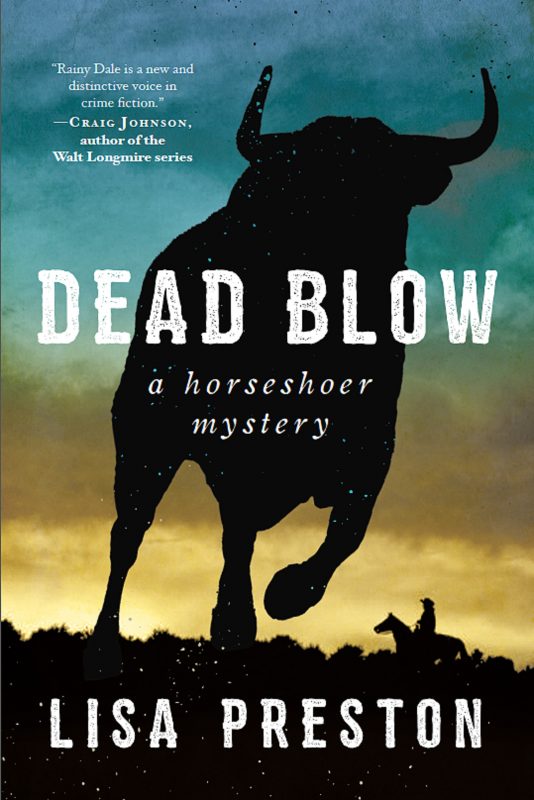
Rainy will have to dig deep and use all the tools in her box to both defend herself and the people she's just learning to love.
More info →

THE DAY BAILEY DEVLIN PICKED UP A PENNY
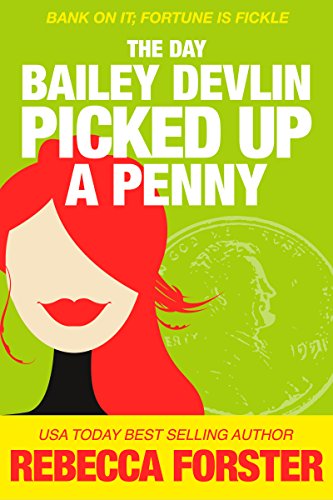
Oh, Boy! Oh, Bailey!
Find a penny, pick it up; just don't bank on Lady Luck.